
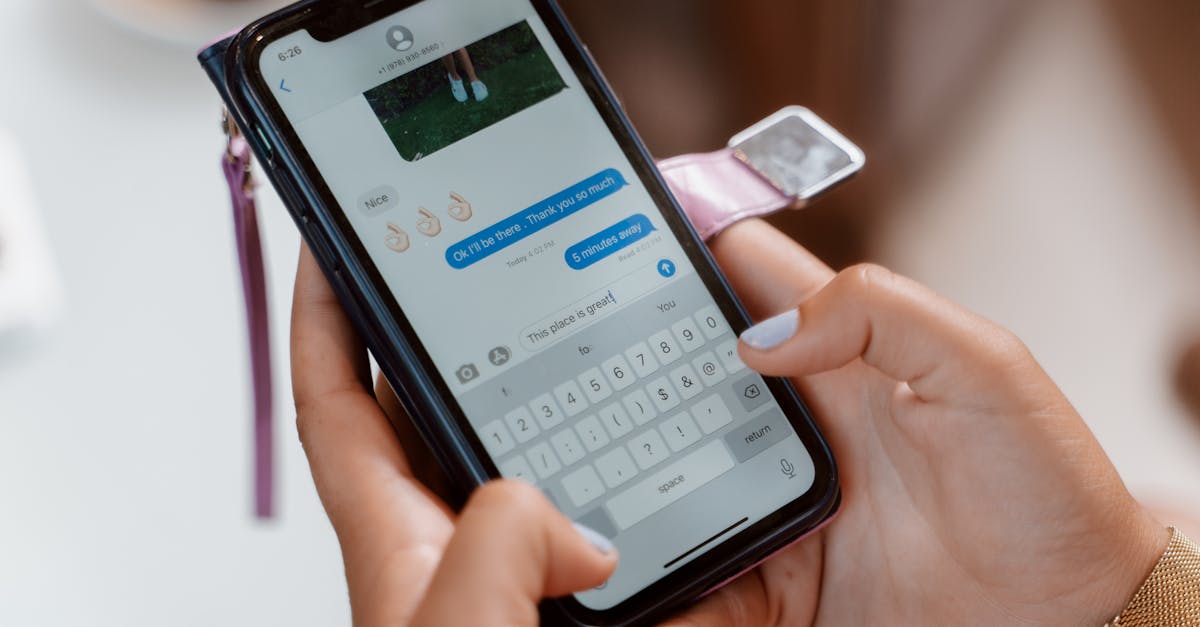
When it comes to texting, why settle for boring old words when you can light up your conversations with a bang? Sending fireworks through iPhone messages is like adding a little sparkle to your chats. Imagine your friends’ faces lighting up as they receive a burst of colorful explosions right on their screens. It’s the ultimate way to celebrate any occasion or just to say, “Hey, I’m thinking of you!”
Table of Contents
ToggleHow To Send Fireworks On iPhone Message
Sending fireworks in iPhone messages adds a special touch to conversations. First, open the Messages app. Select an existing conversation or start a new message. Type a text message to accompany the fireworks animation.
After finishing the message, press and hold the send button. You’ll see a screen with different animation options. Choose the “Screen” option at the top of the screen. Swipe left to find the fireworks effect.
In selecting fireworks, tap the send button again to share the message with the animation. Once sent, recipients will see the fireworks animation play on their screen. They can also interact with the animation by tapping the screen.
Moreover, this feature works with various iOS versions, enhancing the overall messaging experience. Fireworks animations make essential moments, celebrations, or just casual chats more vibrant and memorable.
It’s important to ensure the recipient also uses an iPhone and has the proper iOS version to see the effect. Supported devices include iPhone 6 and later models running iOS 10 or newer. This ability to send dynamic messages keeps conversations lively and engaging.
Overall, sending fireworks transforms ordinary texts into festive experiences, conveying excitement and fun effortlessly. Use this feature to share joy with friends or loved ones.
Understanding iMessage Effects
iMessages include several engaging effects, enhancing the user experience. These features create dynamic messages that go beyond standard text.
What Are Message Effects?
Message effects add visual excitement to text conversations. Users can choose from various options, including balloons, confetti, and laser lights. Each effect provides a unique way to convey emotions and celebrate special moments. For instance, sending balloons can create a festive mood, while confetti may enhance a congratulatory message. Users enjoy these features on iPhone models running iOS 10 or newer. Engaging with message effects brings a new level of interaction to texting.
How Fireworks Work in iMessage
Fireworks are one of the most popular message effects in iMessage. This effect symbolizes celebration and joy, perfect for marking special occasions. Activating fireworks involves selecting the “Screen” option after typing a message. Users can swipe to find the fireworks effect, showcasing vibrant animations. Recipients experience the fireworks effect immediately after receiving the message. Enjoying this feature adds a fun element to routine conversations, making texting more lively and enjoyable.
Step-by-Step Guide
Sending fireworks through iMessage adds flair to conversations. Follow these simple steps to make your messages pop.
Preparing Your iPhone
Ensure the iPhone runs iOS 10 or newer. Check the model; it must be an iPhone 6 or later. Open the Settings app and confirm the software version. Users must have an active internet connection for iMessage to function smoothly. Enabling iMessages is crucial; navigate to Settings, then Messages, and toggle the iMessage switch on. After these steps, prepare to add excitement to your messaging.
Sending Fireworks via iMessage
Launch the Messages app and select a chat. Type your message to convey your thoughts. Instead of tapping send, press and hold the send button. A menu of animation options appears. Choose “Screen” to access visual effects. Swipe left until the fireworks animation becomes visible. Tap the send button again to share the vibrant display. Recipients will enjoy an interactive experience, making messages unforgettable.
Tips And Tricks
Enhancing the fireworks messaging experience involves a few handy tips.
Customizing Your Fireworks Experience
Fireworks effects can bring personal flair to conversations. Users can combine fireworks with personalized messages for added impact. By using different text colors or modifying message backgrounds, the visual experience improves further. Adjusting the timing of sending fireworks can create anticipation or surprise, making conversations more engaging. Experimenting with various effects, like confetti or balloons, alongside fireworks can create a festive theme. Engaging with dynamic elements throughout messages fosters a unique messaging environment.
Troubleshooting Common Issues
Addressing issues with fireworks messages can be straightforward. Users may encounter problems if iMessages aren’t enabled, so confirming settings is critical. An active internet connection ensures smooth functionality; check Wi-Fi or cellular data whenever issues arise. Users facing difficulties can restart their iPhones to refresh connectivity. If fireworks don’t appear, reviewing iOS updates for compatibility fixes helps resolve many issues. Confirming that the recipient’s device supports effects also prevents frustration.
Sending fireworks through iPhone messages adds a delightful touch to any conversation. This feature not only enhances the texting experience but also allows users to express their emotions in a vibrant and engaging way. By following the simple steps outlined in the article, anyone can easily incorporate this fun animation into their messages.
With the ability to customize these effects and explore other iMessage animations, users can transform ordinary exchanges into memorable moments. Embracing these features ensures that every message sent is a celebration, making communication more interactive and enjoyable. So go ahead and light up someone’s day with a spectacular fireworks message.